

I spent thirty years measuring twice and cutting once. When I set up a home office after retirement, I expected to apply the same logic to the electronics side of the desk. What I found instead was a tangle of cords going to a plain power strip, devices drawing power around the clock, and zero way to know which outlet was pulling what. A smart plug strip gave me the tools to fix it myself, one outlet at a time.
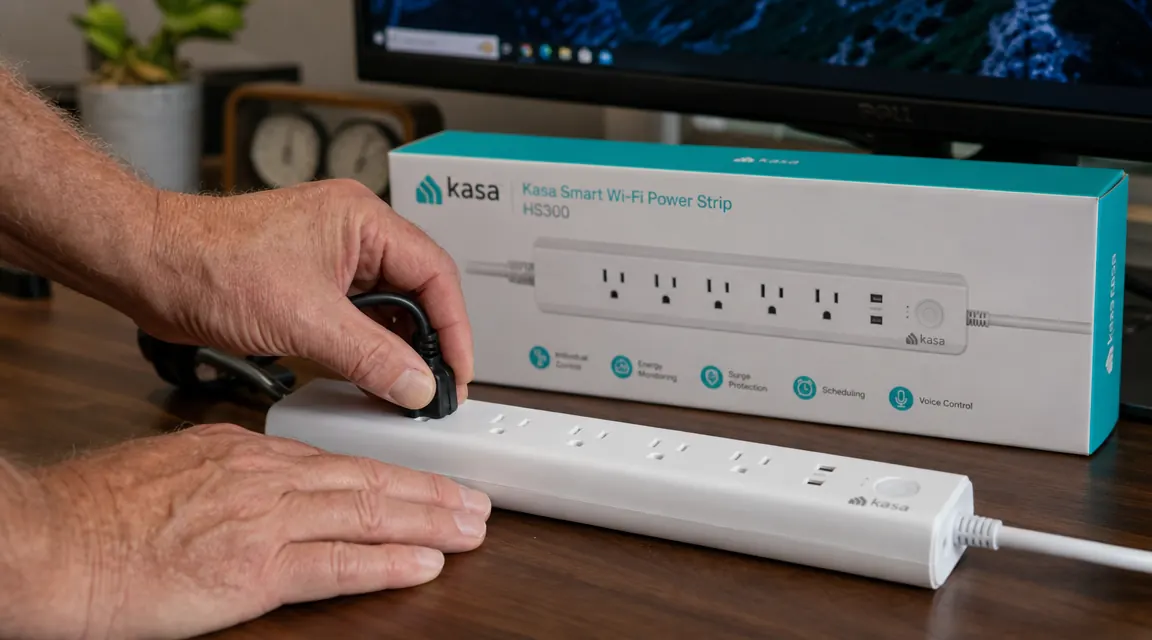
The Kasa HS300 is what I use. Six individually controlled outlets, three USB ports, built-in energy monitoring, and a clean app that does not make you jump through six different account setups to get started. The ten tricks below are not magic. They are practical uses I have settled into over about eight months of daily desk work, and every single one of them runs on that strip.
Your monitor is probably on right now and you are not at your desk.
The Kasa HS300 lets you schedule and shut off individual outlets from your phone. Six outlets, three USB ports, and energy monitoring included at today's price.
Amazon Check Today's Price on Amazon →Put Your Monitor on a Hard Shutdown Schedule
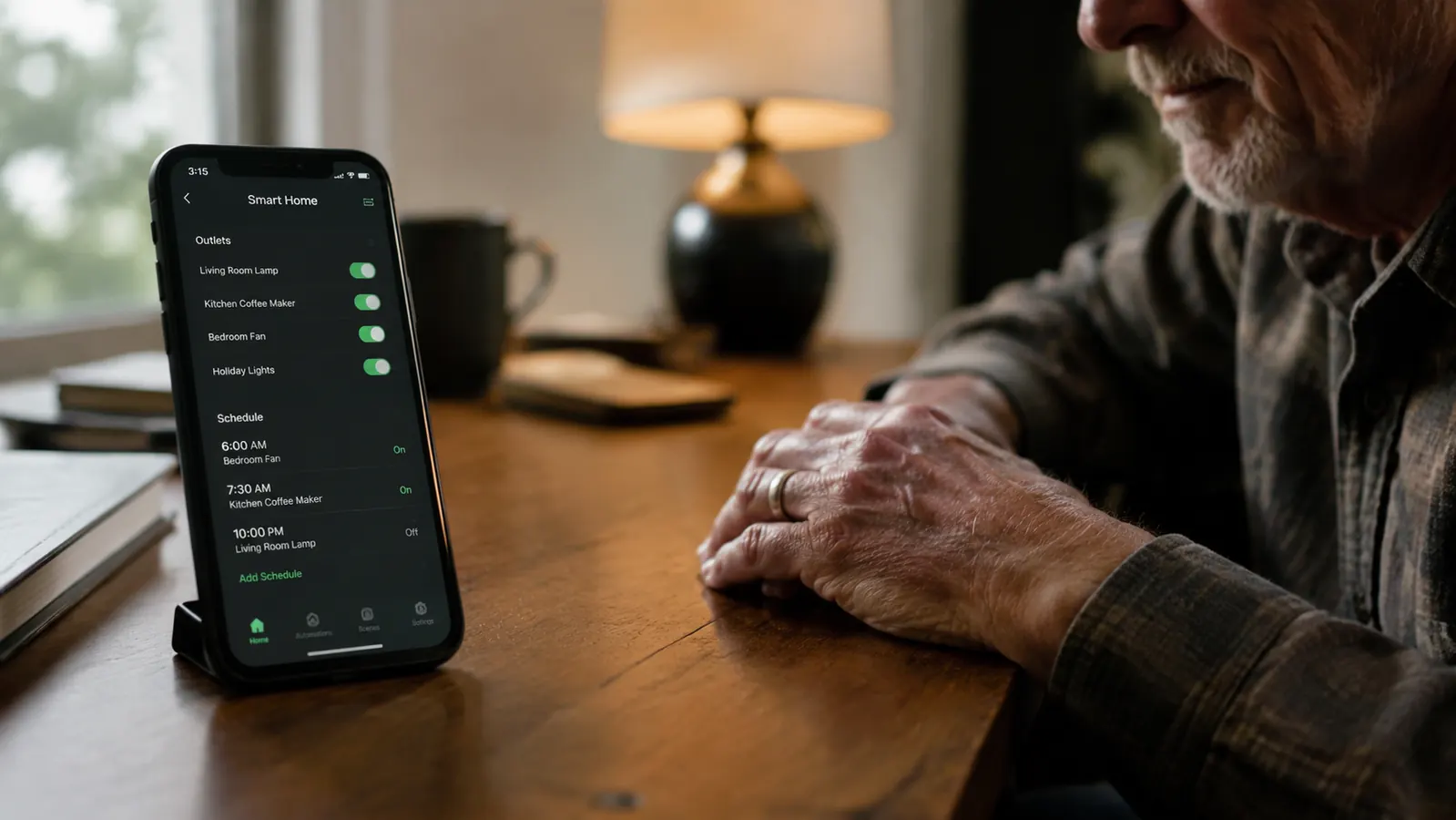
The monitor is almost always the last thing I shut off and the one most likely to stay on overnight when I get distracted. I gave it its own outlet on the HS300 and set a hard-off schedule at 7:30 PM every weekday. It does not care whether I remembered. When the clock hits 7:30, that outlet goes dark. My monitor has not sat idle through dinner in months. You can still override it from the app if you are working late, but that small friction of opening the app is exactly enough to make you decide whether you actually need another hour. Most of the time, the answer is no.
Build a Staged Morning Power-Up Sequence
My desk has a lamp, a monitor, a speaker, and a small fan. Before the HS300 I reached over and switched them on one by one, or I left them all on overnight. Now I have a 7:45 AM routine that brings the lamp and speaker on first, waits two minutes, then turns the monitor on. The reason for the delay is simple: my desktop needs a moment to wake up, and if the monitor comes on before the machine is ready I get a blank screen and assume something is wrong. Staging the sequence solved that. I walk in to a desk that is already ready.
Use Per-Outlet Energy Monitoring to Find the Real Culprit
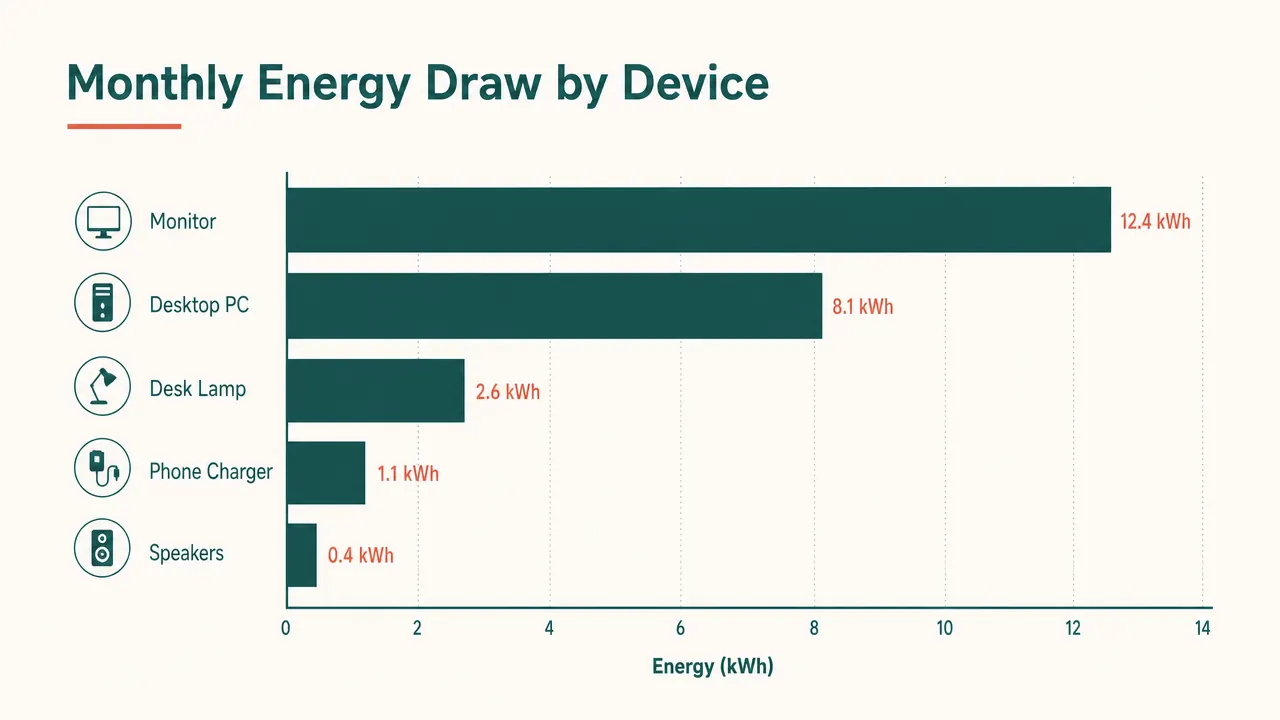
I was certain my desktop was the biggest power draw on the desk. I was wrong. The energy monitoring in the HS300 app showed me, over about three weeks, that my old external hard drive enclosure was drawing nearly as much as the monitor simply by sitting in standby. I had no idea. I put it on a schedule so it only gets power during work hours, and my monthly usage on that outlet dropped noticeably. Per-outlet data gives you a culprit. A whole-home monitor just gives you averages. Once you know which device is the offender, it takes about thirty seconds to fix it.
Cut All Non-Essential Gear at Once With a Single Voice Command
The HS300 pairs with Alexa and Google Home without a hub. I have a group set up in Alexa called 'desk off' that kills three outlets at once: the lamp, the speaker, and the monitor. When I am done for the day, I say 'desk off' from the kitchen and walk away. For someone like me who has gone back to double-check a power outlet more times than I want to admit, having a single voice command do the job is a real quality-of-life change. My border collie Lexi has not figured out how to trigger it yet, though she knows by now that it means a walk is coming.
Label Every Outlet in the App Before You Need to Troubleshoot
The HS300 app lets you rename each of the six outlets. This sounds small until you are troubleshooting at 9 AM and staring at Outlet 1 through Outlet 6, trying to remember which is the monitor and which is the router. I named mine: Monitor, Tower, Lamp, Speaker, Hard Drive, Spare. Takes two minutes once and saves confusion every time after. Good labeling is the same principle as marking your lumber before you cut it. A few seconds of prep prevents a lot of head-scratching later.
Set a Vacation Mode So the Desk Does Not Look Like an Empty House
When I travel to see my daughter in Portland, I put the desk lamp on a randomized schedule through the HS300 app, turning it on and off at irregular intervals between 6 PM and 10 PM. It is not a security system. It is just a small, cheap layer of looking-occupied that costs nothing extra once the strip is already on your desk. Combined with the energy monitoring, I can check from my phone whether anything is drawing power that should not be, which is a useful sanity check when you are three states away wondering whether you left the hard drive running.
Separate Your Monitor and Speakers Onto Their Own Outlets for Faster Switching
My monitor and speakers both go through the HS300, but they are on separate outlets. This matters more than it sounds. When I want quiet focus mode, I cut the speaker outlet without touching anything else on the desk. When I want to step away from the monitor briefly but keep music going, I flip just the monitor outlet off. Having fine-grained control over individual devices instead of everything-on or everything-off changes how you actually use the desk. You stop reaching for device power buttons and start managing from your phone or voice, which keeps the desk surface cleaner too.
Kill Phantom Draw on Everything You Only Need During Work Hours
Phantom load, sometimes called standby power, is the electricity a device draws even when it is off. A printer, a USB hub, a charger with nothing plugged into it, an external hard drive in sleep mode: each one trickles power all day. The HS300 lets me cut those outlets entirely from 7 PM to 7 AM. The devices wake up when the outlet comes on in the morning and go completely dark overnight. The energy numbers are not dramatic, but over a month they add up, and more importantly I am not heating up electronics that have no reason to be warm at 2 AM.
Reboot a Frozen Router Remotely Without Getting Up
My router sits under the desk, plugged into the HS300. The first time my internet went sideways during a video call, I reached down, unplugged the router, counted to ten, and plugged it back in. Then I realized I had a smart strip with remote outlet control sitting right there. Now when the connection goes strange I open the Kasa app, toggle the router outlet off and back on, and wait ninety seconds. It works every time, and I never have to crawl under the desk again. If I am away from home and something seems off, I can do the same thing from my phone over the cellular connection before the internet reboots.
Set an Away Routine That Shuts Down the Full Desk on Weekends
I do not work weekends anymore, and I do not want my desk gear running all weekend either. I have a Saturday and Sunday routine in the Kasa app that cuts every work outlet at 8 PM Friday and brings them back at 7 AM Monday. The USB charging ports stay live because I still charge my phone on weekends, but the monitor, tower, speakers, hard drive, and lamp all go dark for two full days. The desk just sits there, quiet and cold, not drawing a watt. It is a small thing that requires no discipline once you set it up. You make the decision once and the schedule handles it every week.
What I Would Skip
The USB ports on the HS300 share 2.4A across all three. That is enough for a phone or a small tablet, but if you need to fast-charge a newer device or run two tablets at once, you will be disappointed. I use mine for my phone and a small accessory, and that works fine. But if high-wattage USB charging is the main thing you need at your desk, get a dedicated charging station and let the HS300 handle your AC-powered gear. Also, the strip is not compact. It is bigger than a standard surge protector, so if your desk space is tight or you plan to mount it underneath the surface, measure before you order. It is built solidly, no complaints there, but it does take up real estate.
Per-outlet energy monitoring gives you a culprit. A whole-home monitor just gives you averages.
Six controlled outlets is the difference between a smart desk and a dumb power strip.
The Kasa HS300 has been sitting on my desk for eight months without a hiccup. If you are ready to stop leaving gear on overnight and start knowing what your devices actually cost to run, it is worth checking the current price.
Amazon Check Today's Price on Amazon →